
Table of Contents
RedVision Setup
RedVision make popular rugged PTZ cameras in the UK. These cameras should work out of the box with TetherX.
Enable ONVIF
If your RedVision camera isn't automatically detected, ensure ONVIF is enabled in the camera settings:
Log in to the camera's web interface
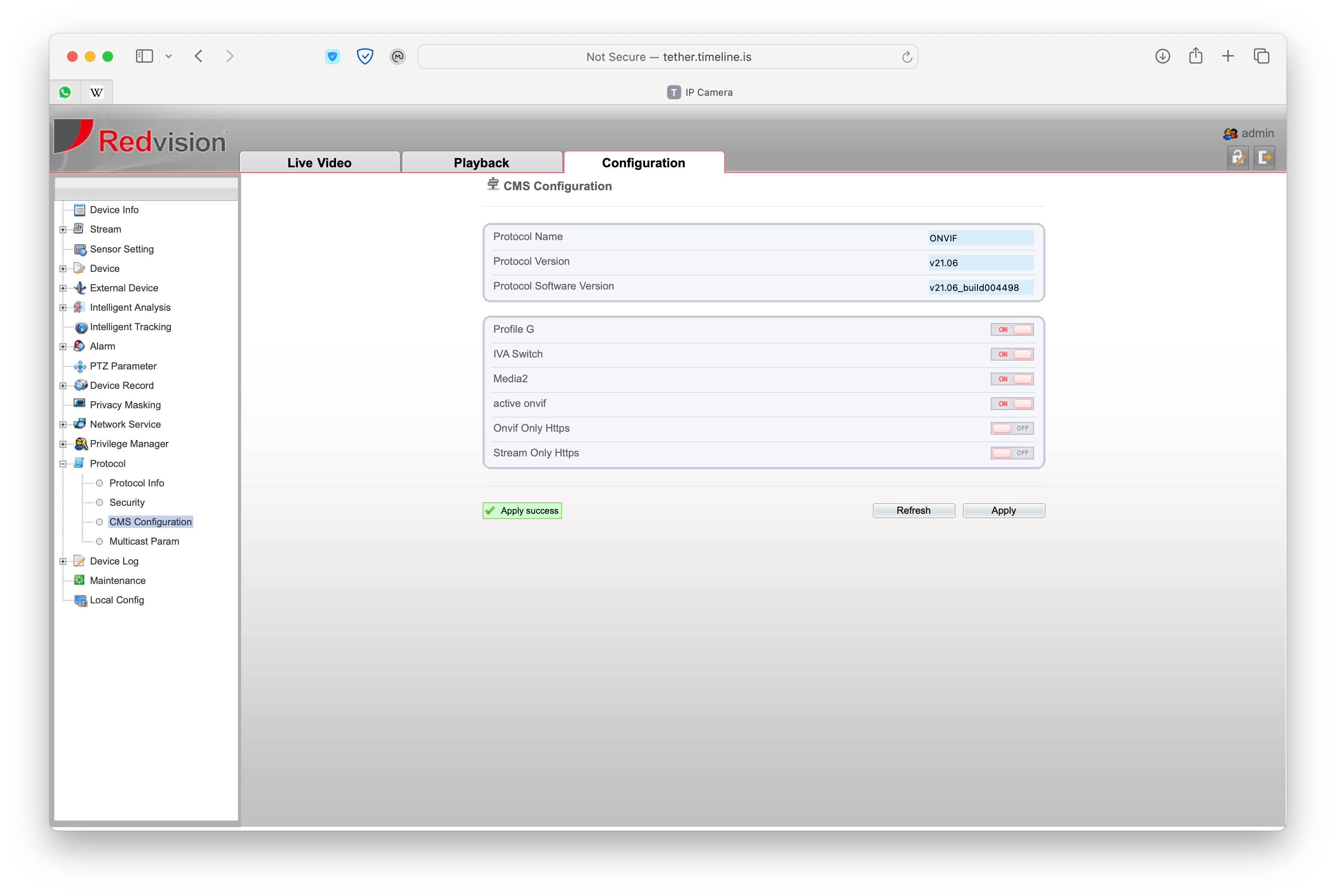
Navigate to Configuration → Protocol → CMS Configuration
Enable the following options:
- active onvif
- Profile G
- IVA Switch
- Media2
Click Apply to save
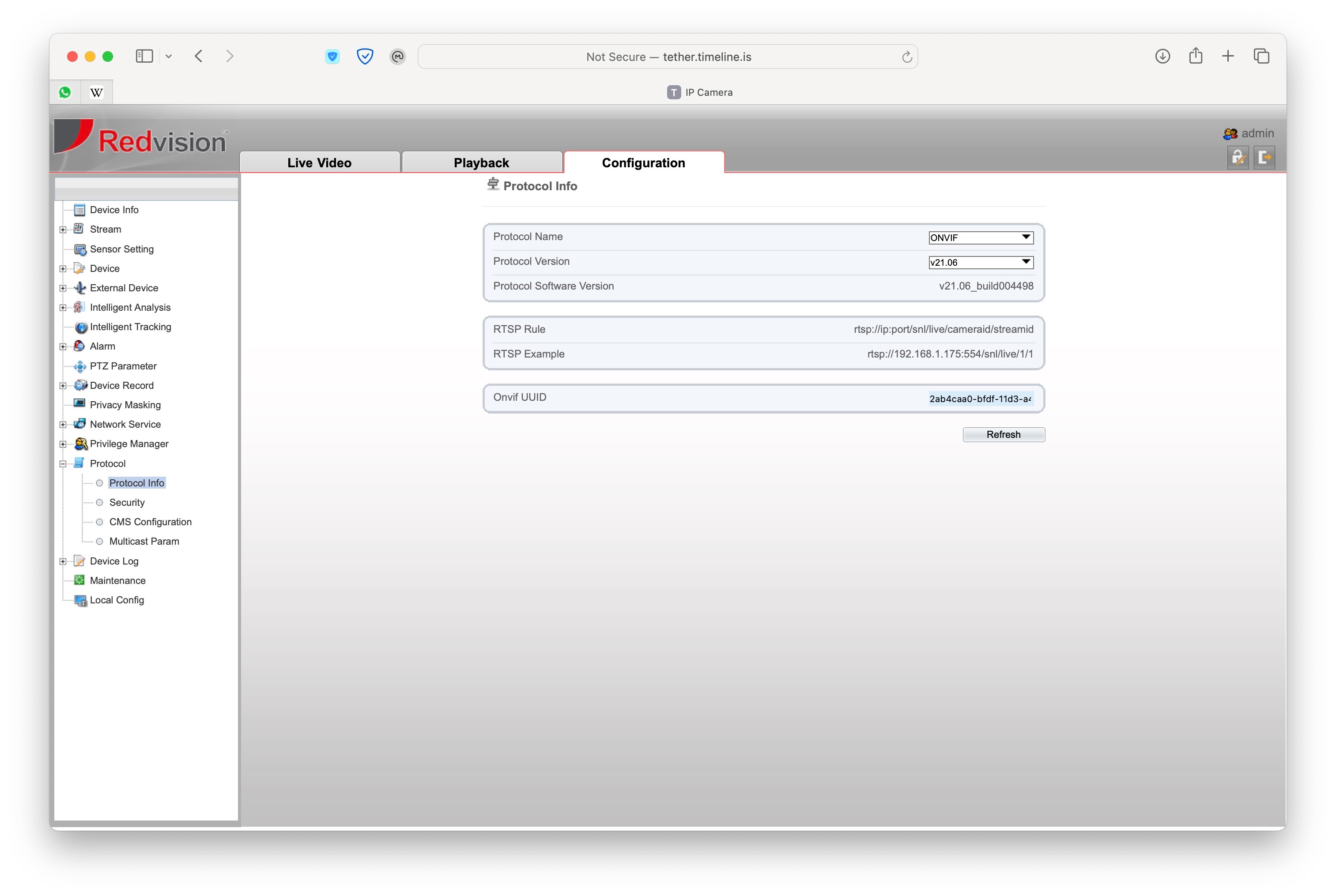
Tip: You can verify ONVIF is working by checking the Protocol Info page, which displays the RTSP URL format and ONVIF UUID.
Manual Configuration
If the camera is still not automatically detected, configure the paths manually in TetherX:
Scroll to the Advanced Settings section
Enter the following paths:
| Setting | Value |
|---|---|
| Analytics Path | /snl/live/1/2 |
| Recording Path | /snl/live/1/1 |
| Snapshot Path | /cgi-bin/image.cgi?userName=USER&password=PASS&cameraID=1&quality=5 |
Warning: For the Snapshot Path, replace USER and PASS with your camera's actual username and password.
Troubleshooting
If you're still having issues:
- Verify the camera credentials are correct
- Check that the camera firmware is up to date
- Ensure the camera is on the same network as your TetherBox
See Camera Troubleshooting for general troubleshooting steps.